Schnelle Tipps
🔎 Suchen Sie, bevor Sie posten: Bevor Sie einen neuen Beitrag erstellen, suchen Sie nach, ob Ihre Frage bereits vorhanden ist.
💬 Seien Sie beschreibend: Fügen Sie Screenshots und so viele Details wie möglich hinzu, wenn Sie Fragen stellen oder Antworten geben (ohne vertrauliche Daten preiszugeben). Je mehr Details Sie angeben, desto besser kann Ihnen die Community helfen.
💡 Answer: Browse the Community and help other users by providing solutions and suggestions to their questions. You can mark answers as Insightful if you find them helpful.
🎖️ Earn points: Earn points and badges by participating! (See: How to score Community Points and Badges)
Frequently Asked Questions
How do I create, edit, or delete my post?
Log In:
In order to ask or answer a question or create a post in the Smartsheet online Community, you must first set up an account (see: Getting started: Create an account).
Create a Post:
You can start a new Question, Discussion, or Idea by clicking New Post.
- Questions: only Questions can have Best Answers so this is the best choice when you have an issue that needs to be resolved or you are looking for solutions.
- Discussions: these posts allow you to chat with other users, such as providing an example of one of your own use-case scenarios, without necessarily needing an answer.
- Idea: these posts can be voted on by other Community members. Only create an Idea if you've made sure it doesn't already exist.
Edit or Delete your post:
You can edit your post for up to four hours after your initial post time by clicking on the three dots in the top-right corner of your post.
If this time has passed and you need to either edit or delete your post, you will need to contact a Community Moderator to facilitate the change.
To do so:
- Click the flag icon on the Post
- Select Report
- Write a detailed note with how you would like your post to change
NOTE: Reporting a post is a private action that does not add any negative points.
You can also use this Report function to request images to be removed, to send a note to the Moderation team, or to change what comment was marked as the Best Answer to your question.
How do I unsubscribe from or manage the email notifications I receive?
In the upper-right corner of the Community, click Account Options > Edit Profile.

From the options on the right, click Notification Preferences.
You can subscribe to any of your Followed Categories to receive notifications for every new post in the online Community.
How do I update my email address in the Community?
The online Community uses either your Smartsheet or Brandfolder account to authorize access to the Community.
This means that if you update your email in your Smartsheet app account, your Community profile will automatically update to associate your account with this new email address as well! (See the Help Article: Change the Email Addresses Used with Your Smartsheet Account)
However if you have an entirely new Smartsheet account this will create a new Community account as well.
Migrating Badges & Points
If you have a new Smartsheet account and wish to migrate over all your old badges, conversations, and points from one account to another, you will need to reach out to our Moderation team while you still have access to the original email address.
- For privacy reasons, we will need the old account to confirm that the data can be migrated and this email can be deleted from the Community.
- Once we have confirmation from the old account we can delete the email and replace it with your new account email.
Note: do not log in to the Community or post with your new email address until you’ve had confirmation from a Moderator that your old account was updated. Any posts or badges made with the new email will be deleted during the migration.
To begin this process, Report this post using the flag icon with your current account (the one to delete) and provide us with your new email address. We will reach out in a private message with next steps.
How do I report abuse or spam?
To report a violation of the online Community’s rules or the law, click the Flag icon in the lower-left of the post and then choose one of the following options:
- Report (to have the post reviewed by a Smartsheet Moderator with a note)
- Spam
- Abuse
A moderator will review the flagged content and take appropriate action.
How do I set up my profile or change my password?
In the upper-right corner of the Community, click Account > Edit Profile (you’ll see this option only when you are logged in).Password Reset:
Because you use your existing Smartsheet account to log in to online Community, you must change your password through the Smartsheet application. For more information about how to do this, see Change the Email Addresses Used with Your Smartsheet Account and Change and Reset Your Password.
How do I use Rich Text when I’m posting a question, discussion, or comment?
There are a number of different formatting options when posting content in the online Community.

This first set of buttons allows you to add bold, italic, strike, code, or link formatting to selected text. The following standard keyboard shortcuts also work when you have begun typing inside the editor.
- ctrl+b or ⌘+b for bold.
- ctrl+i or ⌘+i for italic.
- ctrl+k or ⌘+k for link.
Paragraph Formatting
You can also adjust paragraph formatting within your posts by clicking on the Paragraph symbol that appears to the left as you type. Currently it is broken down into 4 categories:
- Heading Formats (Displays 4 possible levels of headings).
- List Formats (Numbered List, Bulleted List, Indented & Outdent).
- Special Formats (Quote, Code Block, Spoiler).
- Standard Format

Markdown Macros
There are a number of markdown macros that will transform your text:

NOTE: one of the macros is the greater than symbol, >, which will turn your text into a comment. If you are typing in formulas that include a > symbol, you may want to do one of the following:
- Create the formula in Smartsheet and then copy/paste it into the text editor on Community
-or-
- Use the Code Block format to type your formula
How do I create a hyperlink in Community content?
To create a hyperlink, select the text you want to use for the link, and then click the link icon, in the far right of the formatting tools.
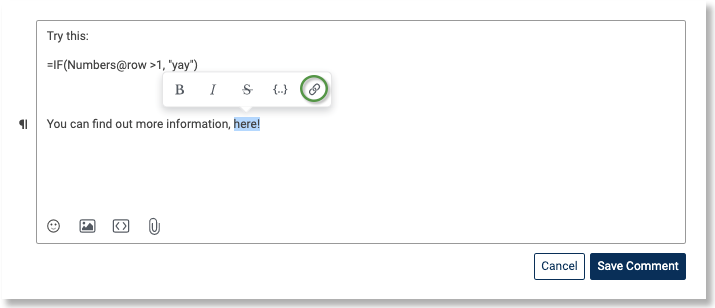
After typing or pasting in the URL, press Enter to finalize the link.

Make sure all hyperlinks created do not have any formatting applied (such as bold or italics). When a hyperlink is bolded, Community Members will need to right-click and select “Open Link in New Tab” in order to access the URL.
Additional items to note when creating a hyperlink:
For external hyperlinks you must include "https://" at the beginning of any url within the formatting tools. This will ensure hyperlinks shared outside of Smartsheet's Community can be accessible by all Community Members.

How do I save or bookmark a post to return to it later?
Clicking on the Bookmark icon in the top-right corner of a post will bookmark the post.
You can find all of your bookmarked posts under the My Bookmarks quick link:

TIP: You can set up Notifications on your Bookmarked posts from your Profile.
How can I “Follow” a specific Topic?
Recent Discussions feed:
You can follow specific topics by these steps:
- Click on Topics from the header menu.
- From this page, find the Topic you’d like to follow and click it.
- Find the Bell Icon and select from the preference options.
Note: some Topics have sub-Topics. You may need to click another Topic to find the bell icon.
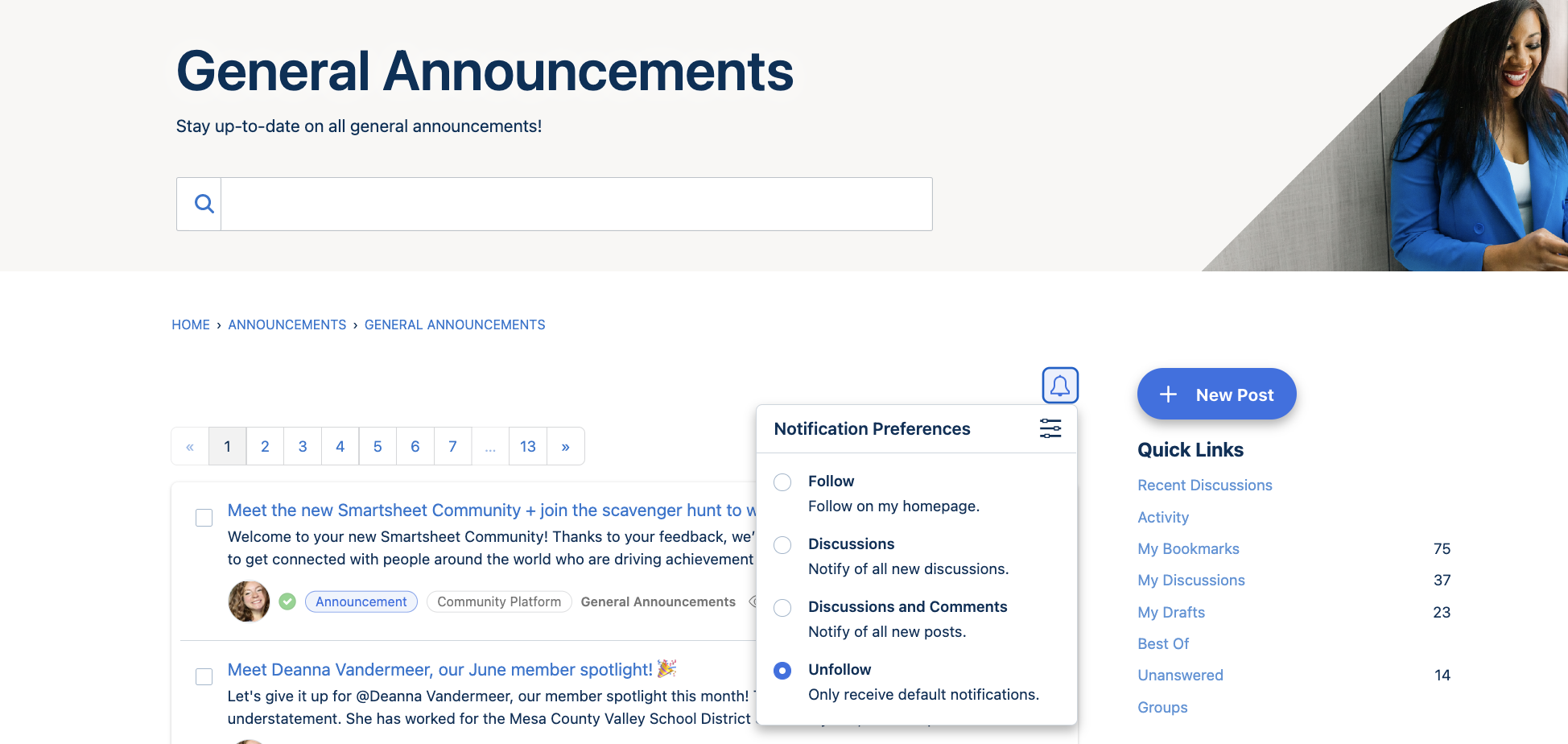
You can set up your Notification Preferences to receive either email notifications or popups in the Community whenever a new post is made within a specific Topic.
How do I let others know what answer was best?
After someone has responded to your question with a comment, you will notice that under their comment there’s a prompt asking you,
Did this answer the question? Yes . No
If you click Yes, this answer will appear under a heading that says Best Answer, and your post will have an Accepted answer label next to its title in the feed.

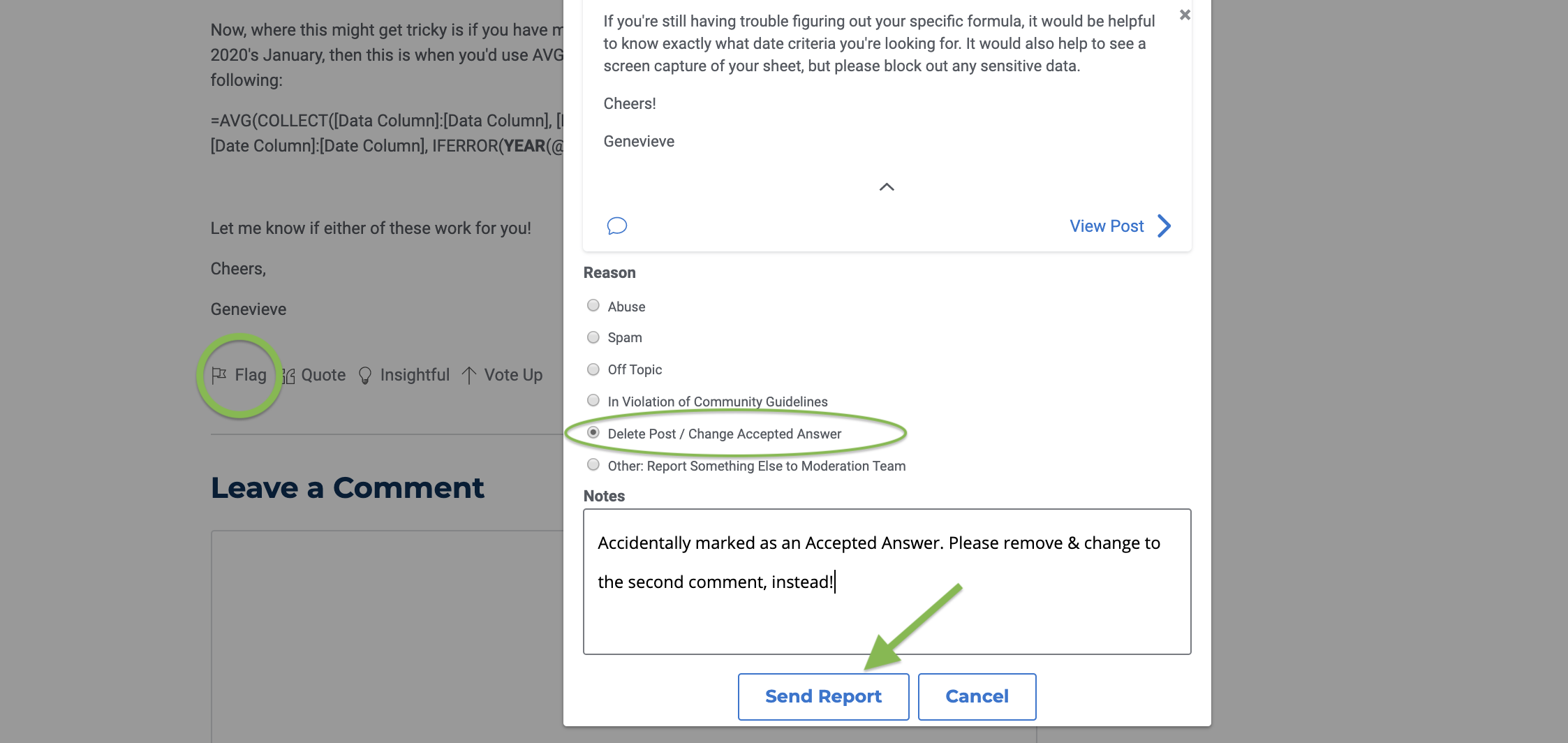
NOTE: if you accidentally say “Yes” or “No”, you will need to contact a Community Moderator to facilitate the change.
To do so, please click the Flag and Report the post which will allow you to leave a note.
How do I notify someone else in one of my comments?
You can @ mention other online Community members to get their attention. To do so, first type the @ symbol and then start typing the name.

This @ mention will appear in their notification center when they next log in to the online Community, unless they have edited their preferences so they do not receive pop-up notifications.
Creating Account Error message: “Permission or Domain Denied”
